
Installing Quizify
Installing Quizify takes only a few minutes and requires no technical knowledge. This guide walks you through finding the app in the Shopify App Store, granting the necessary permissions, and confirming that your installation was successful.
Find Quizify in the Shopify App Store
Log in to your Shopify admin at
your-store.myshopify.com/admin.Click Apps in the left-hand navigation menu.
Click the Shopify App Store at the top of the Apps page. This opens the App Store in a new tab.
In the App Store search bar, type Quizify and press Enter.
Click the Quizify - Product Quiz Builder listing in the search results.
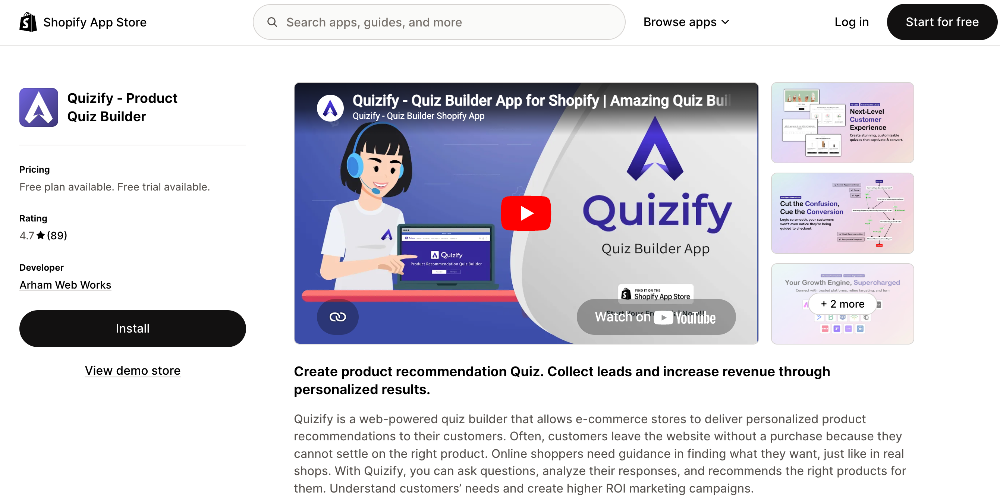
Make sure you are logged into the correct Shopify store before proceeding, especially if you manage multiple stores.
Install the App
On the Quizify listing page, click the Install button.
Shopify will redirect you to your store's admin and display a permissions screen. This screen lists the data Quizify needs access to in order to function — including products, collections, and store information.
Review the listed permissions, then click Install app to confirm.
Quizify requests only the permissions required to build quizzes and recommend products. Shopify will not proceed with installation until you explicitly confirm by clicking Install app.
Access Quizify After Installation
After you confirm the installation, Shopify automatically redirects you to the Quizify dashboard. This is your home base for creating and managing quizzes.
On your first visit, Quizify may prompt you to complete a short onboarding flow. This helps configure the basics — such as connecting your product catalog — so your first quiz is ready to publish sooner.
Confirm the Installation Was Successful
You can verify Quizify is installed correctly in two ways:
Check that you can see the Quizify dashboard in your browser after the redirect. A successful installation displays the main Quizify interface with options to create a new quiz.
In your Shopify admin, click Apps in the left-hand navigation. Quizify should appear in your list of installed apps.
If Quizify appears in both locations, your installation is complete.
Access Quizify from Shopify Admin Going Forward
You do not need to return to the App Store to open Quizify again. To access it at any time:
Log in to your Shopify admin.
Click Apps in the left-hand navigation menu.
Click Quizify in your installed apps list.
Shopify loads the Quizify dashboard directly from there.