Find Quizify in the Shopify App Store
-
Log in to your Shopify admin at
your-store.myshopify.com/admin. - Click Apps in the left-hand navigation menu.
- Click the Shopify App Store at the top of the Apps page. This opens the App Store in a new tab.
- In the App Store search bar, type Quizify and press Enter.
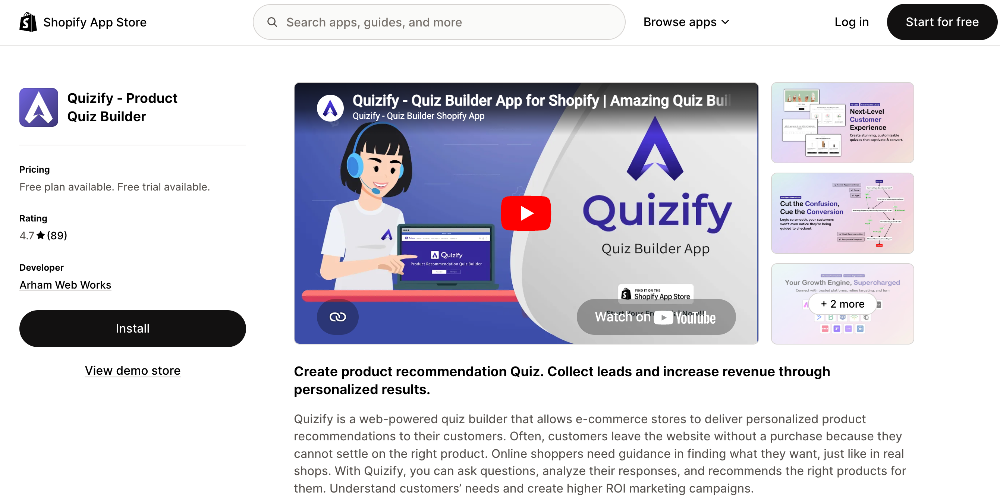
- Click the Quizify - Product Quiz Builder listing in the search results.
Install the App
- On the Quizify listing page, click the Install button.
- Shopify will redirect you to your store’s admin and display a permissions screen. This screen lists the data Quizify needs access to in order to function — including products, collections, and store information.
- Review the listed permissions, then click Install app to confirm.
Access Quizify After Installation
After you confirm the installation, Shopify automatically redirects you to the Quizify dashboard. This is your home base for creating and managing quizzes. On your first visit, Quizify may prompt you to complete a short onboarding flow. This helps configure the basics — such as connecting your product catalog — so your first quiz is ready to publish sooner.Confirm the Installation Was Successful
You can verify Quizify is installed correctly in two ways:- Check that you can see the Quizify dashboard in your browser after the redirect. A successful installation displays the main Quizify interface with options to create a new quiz.
- In your Shopify admin, click Apps in the left-hand navigation. Quizify should appear in your list of installed apps.
Access Quizify from Shopify Admin Going Forward
You do not need to return to the App Store to open Quizify again. To access it at any time:- Log in to your Shopify admin.
- Click Apps in the left-hand navigation menu.
- Click Quizify in your installed apps list.