Opening the Quizify Dashboard
Quizify runs inside your Shopify admin — no separate login or URL required.-
Log in to your Shopify admin at
yourstore.myshopify.com/admin. - In the left sidebar, click Apps.
- Find Quizify in your installed apps list and click it.
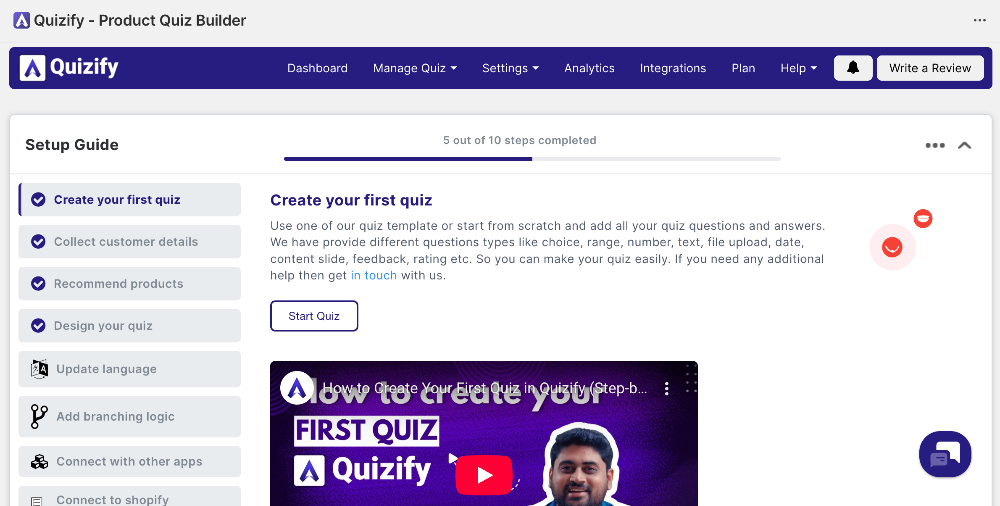
What the Dashboard Shows on First Load
When the dashboard opens for the first time after installation, you’ll see a welcome screen prompting you to create your first quiz. No quizzes or data appear until you build one. Once you have quizzes set up, the dashboard home displays:- A list of your existing quizzes with their published status
- Quick-access buttons to create a new quiz or edit an existing one
- Summary metrics for quiz views, completions, and product recommendations
Fixing Dashboard Load Issues
If the Quizify dashboard shows an error or refuses to load, work through the following steps in order.-
Refresh the page. Press
F5(Windows) orCmd + R(Mac) to reload. - Clear your browser cache. Cached data can cause the app frame to fail. Clear your cache, then try reopening Quizify from Apps.
- Disable browser extensions. Ad blockers and privacy extensions sometimes block the scripts Quizify needs to run. Disable them temporarily and reload.
- Try a different browser. If the issue persists, open your Shopify admin in a different supported browser.
- Check your Shopify session. Log out of Shopify and log back in, then navigate to Quizify again.
- Contact support. If none of the above steps resolve the issue, contact Quizify support with a description of the error message and your browser details.
Recommended Browsers
Quizify works in any modern browser. For the best experience, use an up-to-date version of one of the following:- Google Chrome
- Mozilla Firefox
- Microsoft Edge
- Apple Safari (macOS only)
Internet Explorer is not supported. If you’re using IE, switch to one of the browsers listed above.